
I Cut Client Image Handoffs to Five Minutes With a No-Upload Stack
A client image handoff used to be the kind of task I delayed until the end of the day. A folder arrived full of phone photos, a few exports were too large for email, and I needed to make the files usable without turning a five-minute job into a new software subscription.
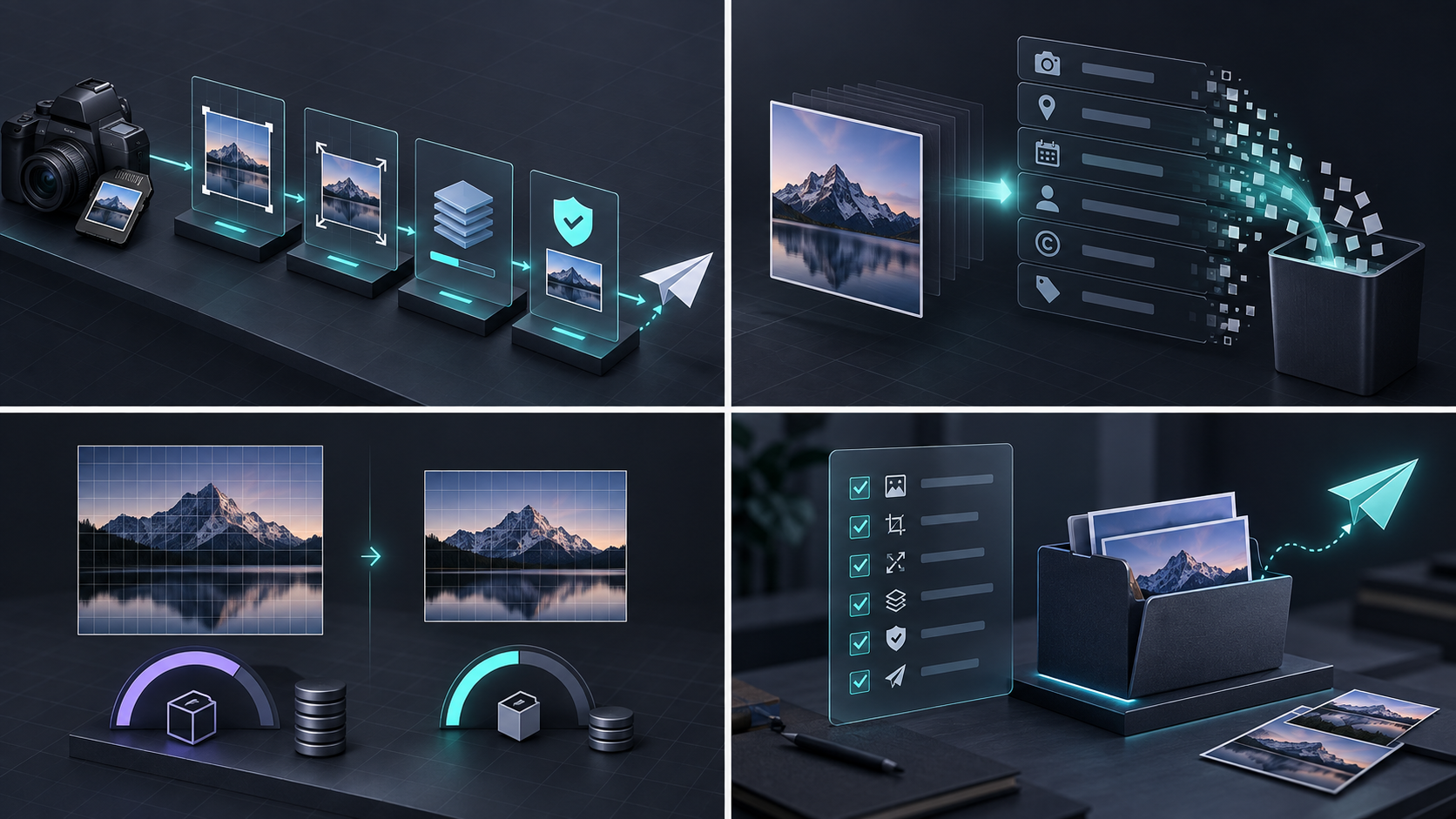
The measurable outcome I cared about was simple: get a clean, consistent, shareable image set out in under five minutes. My current answer is a tiny browser stack from Tiny Online Tools: check the image, resize only when the destination needs it, compress deliberately, and send. The site says its tools run in the browser with no uploads, accounts, or tracking, which is a much better fit for client material than casually dropping files into an unfamiliar converter.
This is not a replacement for a proper design workflow when I am retouching or art-directing. It is the repeatable preflight I use when the work is already done and the friction is file handling.
The Five-Minute Handoff Scorecard
I judge this workflow on four questions:
- Can the client open the file quickly?
- Does the image match the dimensions the destination actually needs?
- Have I avoided sharing unnecessary file baggage?
- Can I repeat the process without installing another app or asking a teammate for access?
If the answer is yes to all four, the handoff is ready. If not, I stop before sending. That last rule has saved more embarrassment than any new project-management dashboard.
Step 1: Start With the Destination, Not the Source File
The common mistake is to optimize an image without knowing where it will land. A storefront product tile, a client email, and a presentation slide have different constraints. I write down the target: pixel dimensions if known, an acceptable file-size range, and whether transparency matters.
Then I use Resize Image only when the source is meaningfully larger than the destination. Its page supports custom width and height, an aspect-ratio lock, JPEG/PNG/WebP output, and a local browser workflow. That means I can create a delivery copy while keeping the original untouched.
The ROI is not “smaller is always better.” It is fewer back-and-forth messages caused by a hero image that is either oversized or visibly stretched. For a useful companion rule, I still refer to my earlier product image handoff preflight when the images are headed to a storefront.

Step 2: Treat Privacy as a Checkpoint, Not a Marketing Claim
Before sharing photos from a phone or a client folder, I make one deliberate privacy decision: does the recipient need every bit of information attached to this file? Usually, they need the image—not a trail of extra context.
Tiny Online Tools’ main site positions the catalogue around browser-based utilities with no uploads, accounts, or tracking. That is why I use it for these narrow handoffs: the task stays local to the browser according to the site’s stated positioning. I do not turn that into a blanket security guarantee, and I do not assume every recipient has the same privacy requirements. I simply avoid giving a one-off service more access than the job calls for.
This is the same instinct behind the contrast check I run before changing Shopify product colors: small quality controls work best when they happen before a file becomes someone else’s problem.
Step 3: Compress With a Quality Threshold
Next, I use Compress Image. The tool supports JPEG and WebP compression, adjustable quality from 1 to 100, and reports byte savings before download. I do not chase the smallest possible number. I reduce quality in a few deliberate steps, compare the result at normal viewing size, and stop at the first setting that is visually acceptable for the destination.
That creates a useful decision matrix:
| Destination | My priority | Compression approach |
|---|---|---|
| Client email | Fast open and reasonable attachment size | Moderate compression; inspect edges and text |
| Storefront asset | Detail where shoppers zoom | Conservative compression; preserve the source |
| Internal review | Speed over polish | Smaller preview copy is usually enough |
A lightweight optimization pass is especially valuable when the team is preparing a shot list or iterating on new product media. This product-photo shot-list workflow is a good reminder that the right file format cannot rescue an unclear image plan.

Step 4: Make the Folder Self-Explaining
The last thirty seconds are operational, not visual. I use a predictable file name, separate the originals from the delivery copies, and include only the assets the recipient needs. If I am testing richer product media, I use the same restraint I described in my first Shopify 3D model test: validate one useful output before scaling a process.
My delivery checklist is intentionally boring:
- Original remains in a source folder.
- Delivery copy is named for the placement, not for my desktop.
- Dimensions and file format match the stated destination.
- Compressed copy looks acceptable at its expected size.
- I have checked whether extra file information is necessary to share.
The result is not a complicated asset-management system. It is a small standard that prevents the kind of invisible rework that eats an afternoon across a team.
When This Stack Wins—and When It Does Not
I use Tiny Online Tools when the work is a specific cleanup: resize, compress, crop, convert, or inspect a file and move on. It wins when the alternative is installing a desktop utility, creating an account, or routing a private one-off file through a service I will never use again. The searchable image-tools catalogue is useful when the incoming asset needs a different narrow operation.
I do not use this stack as a substitute for layered source files, color-managed retouching, collaborative review, or a media library with permissions. Those are different jobs. The productivity gain comes from respecting that distinction.
My Default Next Action
If a client image folder is blocking your next send, do not start by shopping for another platform. Open Tiny Online Tools, choose the smallest tool that matches the job, and run the five-minute preflight: destination, dimensions, compression, privacy decision, clear delivery copy.
That is the system I keep because it saves time without pretending that every small task deserves a big stack.