
How to Sync Notion Pages With Webflow CMS Step by Step
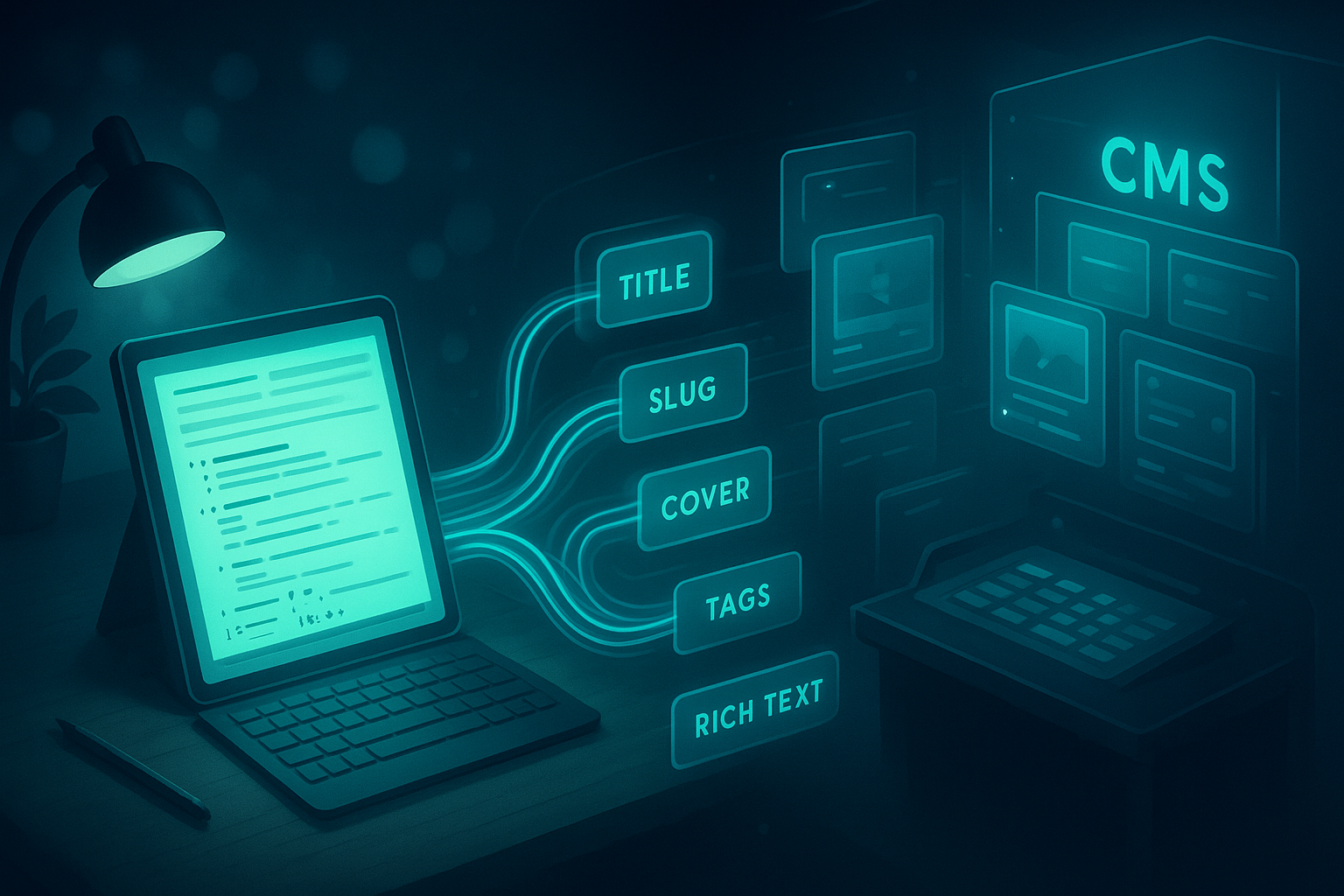
If you write in Notion but publish on Webflow, you don’t need to copy-paste content ever again. With SyncFlow — the Notion-Webflow Sync — you can auto-sync your Notion pages straight into your Webflow CMS, complete with images, code highlighting, math rendering, and optional auto-publish.
Quick links:
- Try SyncFlow: https://syncflow.ybouane.com/
- Watch the full tutorial: https://www.youtube.com/watch?v=_890vYoe3KQ
- Trailer overview: https://www.youtube.com/watch?v=HGjBCLL3anc
Why this matters for SEO and content ops:
- Publish faster: Draft in Notion, then auto-sync to Webflow CMS in minutes.
- Fewer errors: One source of truth eliminates formatting inconsistencies.
- Better consistency: Field mapping enforces clean slugs, alt text, tags, and categories.
- Real-time updates: Change once in Notion, auto-publish to Webflow.
What you’ll need
- A Webflow site with at least one CMS Collection (e.g., Blog Posts)
- A Notion workspace with a database (or the ability to create one)
- A SyncFlow account: https://syncflow.ybouane.com/
Step-by-step: Sync Notion pages with Webflow CMS
- Install SyncFlow and connect your accounts
- Visit https://syncflow.ybouane.com/ and click Get Started.
- Sign up or log in, then grant access to your Webflow sites.
- In the Webflow Designer, launch the SyncFlow app and follow the prompts.
- Connect Notion
- In the SyncFlow app, click Connect Notion.
- Select the Notion page or workspace area you want to sync from.
- Approve access so SyncFlow can read the chosen databases.
- Create a sync task
- Click Sync a new database.
- Choose the Webflow CMS Collection (e.g., Blog Posts) you’ll sync into.
- Choose or create your Notion database
- Pick an existing Notion database or let SyncFlow create one for you.
- If new, SyncFlow will set up the core properties (like Title, Cover image, Tags, etc.).
- Map fields between Notion and Webflow
- Map Notion properties to Webflow CMS fields: Title → Name, Cover → Main Image, Tags → Multi-Reference/Plain Text, Body → Rich Text, Slug → Slug, Summary → Plain text, etc.

Pro tip: Map SEO-critical fields
- Slug: Map a Notion text property to control URL slugs.
- Meta Title/Description: Map to dedicated Webflow fields if available.
- Alt Text: If your Webflow CMS has an alt text field, map a Notion text property to it for accessibility and SEO.
- Choose styling: Inline styles vs. CSS classes
- Inline Styles: Fastest route; keeps formatting straight from Notion.
- Use Classes: Imports clean HTML with classes so you can style everything in Webflow.
- Configure advanced settings
- Auto-Sync: Whenever a Notion page changes, SyncFlow queues a sync.
- Auto-Publish: Automatically publishes synced changes to your Webflow site.
- Code Highlighting: Formats code blocks from Notion for readable dev docs.
- TeX Support: Renders math expressions directly in Webflow — ideal for technical or academic content.

- Save your settings
- Click Save to establish the connection and lock in your mapping.
- Test with a new Notion entry
- Create a new row in the linked Notion database.
- Fill in Title, Body (with headings, lists, images), Tags, and any SEO fields.
- Optional: Add code blocks and TeX to see formatting in action.
- Verify sync status
- In SyncFlow or Webflow CMS, confirm the new item appears within a few minutes.
- Check mapped fields (images, tags, summary, slug, etc.) are correct.
- Design your Webflow template (once)
- Open the CMS Template page (e.g., Blog Post Template) in Webflow Designer.
- Bind elements (Title, Main Image, Rich Text) to CMS fields.
- If you chose Use Classes, style your typographic system in Webflow once — every post stays consistent.
- Go live
- With Auto-Publish on, new content can publish automatically.
- Or publish manually from the Webflow Editor/Designer for editorial control.
Watch the full workflow
- Full tutorial: https://www.youtube.com/watch?v=_890vYoe3KQ
- Quick trailer: https://www.youtube.com/watch?v=HGjBCLL3anc
Best practices for bulletproof Notion → Webflow publishing
- Naming conventions: Keep a consistent Title and Slug format (e.g., lowercase, hyphens, no stop words when possible).
- Media hygiene: Use high-resolution images, compress before upload, and add alt text in a mapped field.
- Content structure: Use H2/H3, short paragraphs, internal links, and descriptive captions for scannability and SEO.
- Tags and categories: Standardize labels in Notion to create clean archives and filters in Webflow.
- Code and math: Enable Code Highlighting and TeX in SyncFlow settings to preserve fidelity.
- Classes strategy: Prefer Use Classes if your brand requires strict typographic control in Webflow.
- QA checklist: Before publish, validate links, headings, image alt text, and that the correct template is used.
- Resyncs: For large migrations, use Full Resync in SyncFlow to keep the Webflow collection perfectly aligned.
Troubleshooting quick fixes
- Item didn’t appear: Confirm the Notion page is in the connected database and properties are filled. Then trigger a manual sync.
- Images missing: Ensure the image property is mapped to a CMS Image field in Webflow.
- Wrong slug or 404: Verify the Slug field mapping and avoid duplicates; update redirects if you changed live URLs.
- Formatting looks off: Switch to Use Classes and style in Webflow, or refine your Notion formatting (H2/H3, lists, callouts).
- Math/code not rendering: Re-check Code Highlighting and TeX toggles in SyncFlow settings.
Pricing and getting started
- Standard Plan: $8/month
- 1 Webflow site install, unlimited syncs, unlimited databases, unlimited connected fields
- Start now: https://syncflow.ybouane.com/
Why teams love SyncFlow
- Auto-Sync + Auto-Publish: Move from draft to live in minutes.
- Versatile field types: Text, images, checkboxes, dates, URLs, and more.
- Page linking: Links between Notion pages can become links between Webflow posts.
- Developer-friendly: Code highlighting and TeX support for technical blogs.
FAQ
- Can I migrate an existing Notion blog? Yes. Point SyncFlow at your Notion database, map fields, and run a Full Resync to populate your Webflow CMS.
- Will my Webflow styles override Notion formatting? If you select Use Classes, you get precise control via Webflow CSS. Inline styles preserve Notion’s exact formatting.
- How fast is syncing? Typically within minutes. Auto-Sync pushes changes as you update content in Notion.
- Can I preview before publishing? Yes. Turn off Auto-Publish to review in Webflow CMS before going live.
Take the fast lane from idea to indexed
Draft in Notion, design in Webflow, and let SyncFlow handle the heavy lifting. Map once, publish forever — with perfect consistency and fewer manual steps.
Draft in Notion, design in Webflow, and let SyncFlow handle the heavy lifting. Map once, publish forever — with perfect consistency and fewer manual steps.
Ready to ship your next post faster?
- Get started free today: https://syncflow.ybouane.com/
- Watch the setup video: https://www.youtube.com/watch?v=_890vYoe3KQ