
How To Create Lifestyle Product Photos That Convert On Shopify
If your Shopify product pages look flat or inconsistent, you are leaving money on the table. Lifestyle product photos give shoppers instant context, reduce friction, and make add-to-cart decisions feel effortless. In this guide, you will learn exactly how to create scroll-stopping lifestyle shots, plus a fast workflow using AI so you can publish more images, faster, without hiring a full studio crew.
Install Supra AI Photo Studio on Shopify to follow along. It has a free plan and turns plain product photos into on-brand lifestyle images, try-on shots, and even short videos. You can also explore the product landing page for feature overviews.
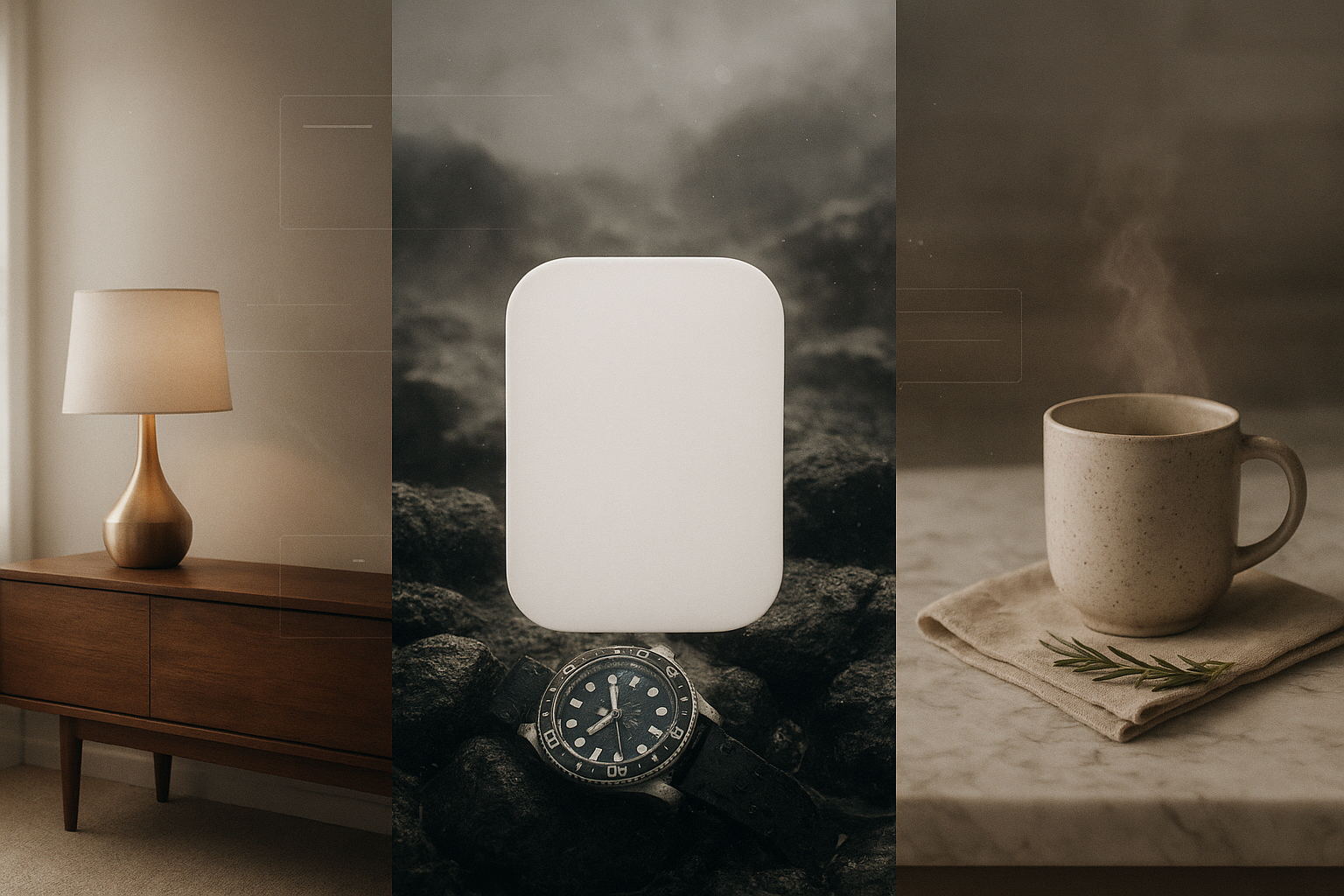
Why lifestyle product photos convert
- Context reduces guesswork. Shoppers immediately understand size, use, and vibe when they see an item in a real setting.
- Emotion drives action. A mood-rich scene creates desire, which improves click-through, time on page, and add-to-cart rate.
- Consistency builds trust. Cohesive lighting, angles, and color grading make your brand feel premium and reliable.
What makes a high-converting lifestyle image
- Clarity first: the product remains the hero, sharp and well-lit, without heavy filters that distort color.
- Accurate color and details: especially for fashion, beauty, and home goods. Misrepresentation increases returns.
- Intentional composition: consider rule of thirds, leading lines, and negative space for text overlays.
- On-brand environments: match your palette, audience, and price point (cozy kitchen, luxe boutique, minimalist studio, outdoors, etc.).
- Mobile friendly: strong at small sizes, with clear silhouette and readable texture.
A fast workflow with AI: from plain shot to lifestyle scene
You can do this in minutes with Supra AI Photo Studio. Here is a practical, repeatable process.
- Start with a clean, sharp base
- Use Background Remover to isolate the product and eliminate distractions.
- Run Auto Enhance to fix exposure, contrast, and color accuracy.
- Upscale to preserve detail for zoom and 2x–3x crops.
https://supra-ai-photo-studio.sktch.io/images/help/editor-overview.webp
- Place the product into a lifestyle scene
- Open Object Placement and pick an environment: kitchen, office, outdoor, studio, luxury boutique, and more.
- Choose surface type (marble, wood, concrete), camera angle (top-down, 45 degrees, eye level), and lighting (soft window light, golden hour, hard flash for edgy looks).
- Keep shadows realistic and consistent with the chosen light direction.
- Export multiple variations to A/B test quickly.

- For fashion, use AI try-on to show fit and styling
- Generate on-model images that reflect your audience: choose pose, body type, skin tone, and setting.
- Maintain product integrity so fabrics, prints, and drape are true to life.
- Create a mini lookbook on each product page to boost engagement.

- Add motion for ads and social
- Use the UGC Video Generator to turn a product image into creator-style short clips with voice and vibe settings that fit your brand.
- Generate b-roll drops with dust, liquid, or smoke effects for high-impact ad intros.
- Link: watch the quick demo trailer.
Prompt ideas to build scenes that sell
Use short, concrete prompts to guide your scenes. Keep the product as the hero.
- Beauty: soft window light on white marble vanity, subtle palm-leaf shadow, glass tray reflections, macro detail of texture.
- Coffee gear: rustic wood table at sunrise, linen napkin, ceramic mug with steam, warm tonal palette and matte finish.
- Tech accessories: matte concrete desk, top-down angle, diffused side light, minimal props like a notebook and pen.
- Outdoor apparel: mossy rock, morning mist, cool color grading, shallow puddle reflection for drama.
- Home decor: airy loft with neutral textiles, natural wood, framed art on white walls, soft tonal contrast.
Visual consistency checklist for your catalog
- Angle system: choose 2–3 recurring angles per category (top-down for small items, 45 degrees for mid-size, eye level for furniture).
- Light recipe: pick a lighting style and stick to it (soft daylight or golden hour). Consistency beats perfection.
- Background palette: limit to two neutrals plus one seasonal accent.
- Shadow language: soft shadows for cozy, harder shadows for bold and modern.
- Cropping rules: hero image with generous negative space; secondary images tighter for texture and details.
Shopify-specific optimization tips
- Image size and format: aim for 2048 x 2048 px square for versatility; use JPG for photos and WebP where supported to reduce size.
- File size: keep most images under 1 MB to protect load speed.
- Alt text: describe the product and scene using natural language and keywords, for example: stoneware mug on rustic wood kitchen counter, warm daylight.
- Naming: use descriptive file names such as stoneware-mug-rustic-kitchen-wood.jpg for better asset hygiene.
- A/B test: publish two lifestyle hero images per product over time and track click-through, gallery engagement, add to cart, and conversion.
Common mistakes that kill conversions
- Over-stylized filters that shift product color away from reality.
- Busy props that steal attention from the product.
- Inconsistent white balance across a collection.
- Shadows pointing in different directions across images.
- Crops that cut off important features or reduce readability on mobile.
Why use Supra AI Photo Studio for this workflow
- Object Placement creates on-brand lifestyle sets in minutes, so you can scale scene variety without reshoots.
- AI Try-On turns flat apparel photos into on-model gallery shots that boost confidence and reduce returns.
- Studio-grade enhancement ensures sharpness, clean backgrounds, and accurate color.
- UGC and b-roll features generate ad-ready motion assets fast for TikTok, Reels, and paid social.
- It lives inside your admin workflow, so you can edit, publish, and keep catalogs consistent without juggling multiple tools.
Pricing that grows with you: try the free plan to explore core features, then move to Standard, Professional, or Agency tiers as your image and video volume increases. See details on the Shopify App Store listing.
Quick start in 10 minutes
- Install the app and open a product image inside the editor.
- Run Background Remover, then Auto Enhance and Upscale.
- Open Object Placement and pick a setting: kitchen counter with soft daylight, marble vanity, or outdoor stone.
- Export two variations and publish. Add descriptive alt text and compress if needed.
- Repeat for your top 10 products and watch engagement improve.
Ready to turn plain shots into lifestyle images that convert
Create on-brand scenes, on-model visuals, and thumb-stopping videos in minutes. Install Supra AI Photo Studio or learn more on the landing page. The free plan makes it easy to start now and scale as you grow.