
How to Connect Etsy Products to Instagram Shopping Without Manual Uploads
If you’re tired of spreadsheets, CSVs, and re-uploading product photos every time you tweak a listing, good news: you can connect Etsy products to Instagram Shopping with an automated data feed. No more manual uploads. In this guide, you’ll learn how to sync your Etsy listings to Instagram and Facebook Shops using Catalog Generator for Etsy, so you can tag products in posts, Stories, and Reels and drive shoppers straight to your Etsy checkout.
Pro tip: Catalog Generator is just 5 USD per month with a 7‑day free trial. Try it here: Catalog Generator for Etsy

Why connect Etsy to Instagram Shopping
- Tag products directly in posts, Stories, and Reels to send shoppers to your Etsy listings with one tap.
- Keep inventory, titles, prices, and photos in sync automatically.
- Increase traffic and conversions from social without extra admin work.
What you need before you start
- A Facebook Business account: https://business.facebook.com/
- Your Facebook Page and Instagram account connected to the Business account (Instagram should be a Professional/Business account).
- Your Etsy shop URL and access to Shop Manager.
- A feed URL from Catalog Generator: Start free trial
Step-by-step: Connect Etsy products to Instagram Shopping
- Create or log into your Business account
- Go to https://business.facebook.com/
- Ensure your Instagram account and Facebook Page are added under Business Settings > Accounts.
- On Instagram, switch to a Business account (it’s free) for product tagging and insights.
- Verify your domain in Business Settings
Meta requires domain verification before product tagging can redirect shoppers to your Etsy shop.
- In Business Settings, open Brand Safety and Suitability > Domains.
- Click Add. Add the domain based on your Etsy shop URL. Example: if your shop is at etsy.com/shop/YourShopName, add yourshopname.etsy.com.
- Choose the Meta tag verification method and copy the tag.
- In Etsy Shop Manager, go to Settings > Facebook Shops (or the Facebook/meta settings area). Paste the meta tag, save, then return to Business Settings and click Verify.
- Create a catalog and choose Data Feed
- Open Commerce Manager from your Business account menu.
- Create a new catalog (if you don’t have one), select the category that best fits your products.
- Go to Items > Add Items > Data Feed.
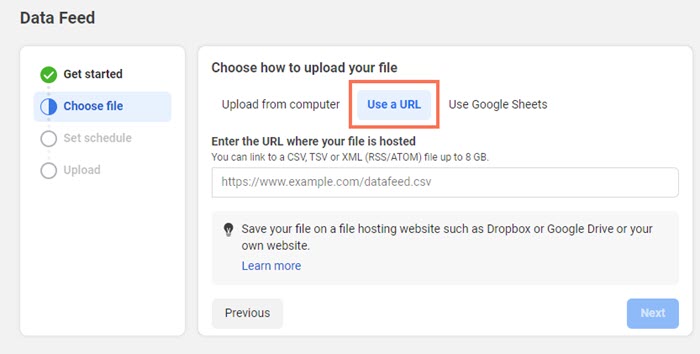
- Choose to use a URL (instead of uploading files) so your catalog stays up to date automatically.
- Generate your Etsy feed URL with Catalog Generator
- Visit Catalog Generator for Etsy and sign in.
- Connect your Etsy shop and grant permissions so the app can read your listings.
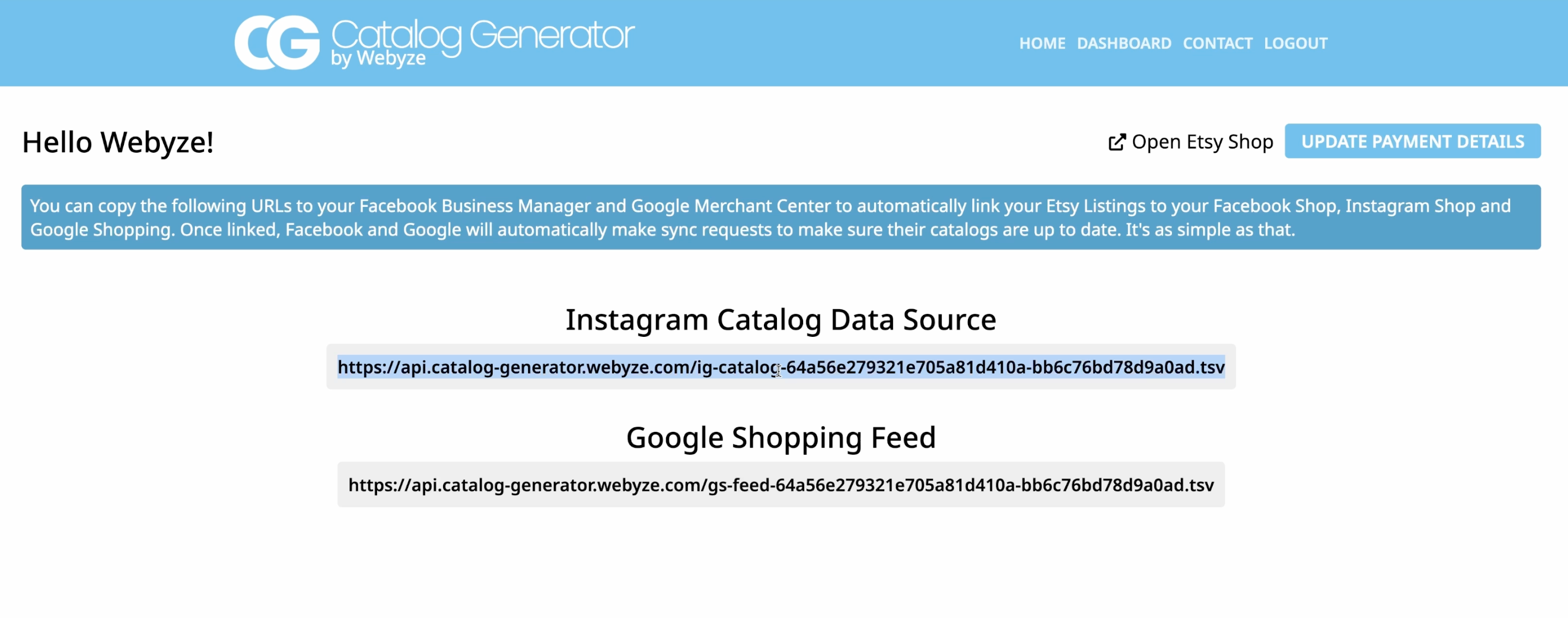
- Copy the feed URL the app provides. This is your always-on source of truth for your product catalog.
- Paste the URL into Commerce Manager and schedule syncs
- Back in Commerce Manager, paste the feed URL into the URL input field.
- Set an automatic fetch schedule (daily works well for most shops).
- Save and upload. Meta will ingest your listings; this may take a few minutes depending on catalog size.
- Submit your domain for approval
- In Commerce Manager > Settings > Catalog, look for the domain approval section.
- Submit the verified domain for approval. Once approved, your product tags can redirect directly to your Etsy listings.
- Start tagging products on Instagram
- Create a new post, Story, or Reel in the Instagram app.
- Select Tag Products and choose items from your synced catalog.
- Publish and watch shoppers tap through to your Etsy shop.
Watch the full walkthrough
- Video: Link your Etsy listings with your Instagram Account and Facebook Page — Catalog Generator for Etsy: https://www.youtube.com/watch?v=2ChLE92Cu4s
Why use Catalog Generator instead of manual uploads
- True set-and-forget: Your feed stays synced as you add or edit Etsy listings.
- Accurate inventory: Stock levels and availability update automatically.
- Clean data mapping: Titles, descriptions, images, pricing, and variants are formatted for Commerce Manager.
- Lightning-fast setup: Get a production-ready feed in minutes, not hours.
- Affordable: Just 5 USD per month with a 100% free 7‑day trial. Cancel anytime.
Start now: Try Catalog Generator for Etsy
SEO and optimization tips for higher conversions
- Use clear, keyword-rich Etsy titles (e.g., handmade gold hoop earrings, minimalist wall art print). These appear in your product tags.
- Ensure your first image is bright and uncluttered; it becomes the thumbnail used in tags.
- Keep shipping profiles and pricing current; mismatches can cause product rejections.
- Add product attributes and materials in Etsy; richer details help with catalog categorization and discovery.
- Post product-tagged content regularly and mix formats: carousels, Reels, Stories with link stickers, and UGC.
Troubleshooting common issues
- Domain won’t verify: Double-check you added the exact subdomain (yourshopname.etsy.com), pasted the correct meta tag in Etsy settings, and clicked Verify after saving.
- Products not appearing: Wait for the scheduled fetch or click Fetch Now in Commerce Manager. Confirm that the feed URL from Catalog Generator is accessible.
- Items rejected: Review Diagnostics in Commerce Manager. Fix missing images, price formatting, or policy issues. Update in Etsy; the feed will re-sync.
- Variants not visible: Ensure variants in Etsy have required attributes (size, color) and inventory values.
- Redirect not available in tags: Confirm domain approval status in Commerce Manager and that your Instagram account is a Business account.
FAQ
- How often does the catalog update? You control the schedule in Commerce Manager. Daily is typical, but you can fetch more often during product drops.
- Will this work with Facebook Shop too? Yes. The same catalog powers both Facebook and Instagram Shops.
- Do I need to upload CSVs? No. The URL feed from Catalog Generator replaces manual CSV uploads.
- Can I pause or cancel? Yes, subscriptions are month-to-month. Catalog Generator offers a 7‑day free trial so you can test first.
Your next step
Connect once, and let automation handle the rest. Generate your feed URL and sync your Etsy catalog to Instagram Shopping today:
- Start free trial: Catalog Generator for Etsy
- Open Business Manager: https://business.facebook.com/
- Add your feed in Commerce Manager and begin tagging products.
The faster you connect your catalog, the faster your audience can buy directly from your posts, Stories, and Reels.