
How To Add Color Swatches To Shopify Product Pages
If your customers can’t instantly see every color or pattern you offer, they’ll bounce. Color swatches turn guesswork into a tap—boosting conversions, reducing returns, and elevating your product experience. In this guide, you’ll learn a fast, no-code way to add beautiful, blazing-fast swatches to your product pages (and even collection pages) using Supra Swatch Colors.
Pro tip: You can be up and running in minutes. Start here: Install Supra Swatch Colors on the Shopify App Store
Why color swatches matter for your store
- Drive higher conversions: Shoppers can see available colors at a glance and switch instantly.
- Reduce uncertainty: Link swatches to accurate photos for each option.
- Faster navigation: Let customers explore color families across product groups without extra clicks.
- Brand polish: On-brand, consistent swatches make your store feel premium.
The fastest path: Use Supra Swatch Colors
Supra Swatch Colors is a highly customizable Shopify app that adds color and image swatches to both product and collection pages—no code required. It supports variant-based swatches and linked-product swatches (perfect when each color lives on its own product page). Swatches load instantly, support multilingual stores, and work with all Shopify themes.
Key advantages at a glance:
- 20+ swatch styles (size, shape, border, tooltip, labels, fonts, and more)
- Works with variant color options or links separate products via swatches
- Product and collection pages supported out of the box
- Auto-detect store colors or use product images for quick setup
- Scales easily to thousands of products and swatches
Install Supra Swatch Colors now or learn more on the official site.
Step-by-step: Add color swatches to your product pages
Follow these steps to add swatches the right way and match them to your brand.
- Install the app
- Go to the Shopify App Store: Supra Swatch Colors
- Click Add app and follow the prompts.
- Choose your swatch mode
- Variant swatches: Ideal when one product has multiple colors (e.g., a single product with “Color” options).
- Linked-product swatches: Ideal when each color is a separate product page. The swatch click navigates between related products.

- Auto-detect colors or map images
- Use Auto-detect to pull common color names (e.g., Black, Navy, Olive) into swatches instantly.
- Prefer photo-accurate tiles? Use product images or custom swatch images—great for patterns, materials, and prints.
- Customize the style to match your brand
- Pick from 20+ styles: circle or square, outline or filled, soft or sharp corners.
- Adjust size, spacing, labels, and tooltips for accessibility.
- Optional: Show “Out of Stock” as crossed or dimmed; enable hover image previews.

- Enable on product pages (no code required)
- Toggle Product page integration in the app settings.
- Select the product options (usually “Color”) to transform into swatches.
- Save and preview your product page—swatches will appear instantly and update images/variants as shoppers click.
- Optional: Enable swatches on collection pages
- Turn on Collection page integration to let shoppers explore colors right from your category grids.
- This reduces clicks and speeds up product discovery.

- Link separate product pages with swatches (if using individual color products)
- Create a product group (e.g., “Everyday Tee”) and add each color product to the group.
- Assign the swatch display (color dots or image tiles) and the order.
- Clicking a swatch will route customers to the correct product URL—seamless and intuitive.
- Localize for multilingual stores
- Add translations for swatch labels and tooltips.
- Supra Swatch Colors supports multilingual setups out of the box.
- Test across devices
- Check desktop and mobile to ensure tap targets are large enough.
- Confirm tooltips are readable and contrast meets accessibility guidelines.
Watch: Quick start tutorials
- Getting started in minutes: https://www.youtube.com/watch?v=K_2l9G1ibIo
- Add swatches to product pages: https://www.youtube.com/watch?v=k8uyugxH9To
- Link separate products with color swatches: https://www.youtube.com/watch?v=H9LOX-vOjYI
- Add swatches to collection pages: https://www.youtube.com/watch?v=FKZQpBrAJQQ
Best practices for high-converting swatches
- Keep it consistent: Use the same swatch shape and labeling across your store.
- Use image tiles for patterns: If your product has prints or textures, photo-based swatches outperform flat colors.
- Name variants clearly: Use customer-friendly color names (e.g., “Navy Blue” vs. “#001F3F”).
- Show availability: Dim or cross out OOS colors to avoid frustration.
- Prioritize popular colors first: Put your bestsellers up front to speed selection.
- Add tooltips for accessibility: Include the color name on hover/focus for screen readers and clarity.
- Optimize images: Keep swatch images lightweight for instant loads (the app is optimized, but clean inputs help at scale).
Troubleshooting tips
- Swatches not showing? Confirm your option name includes “Color” (or manually map it in the app).
- Theme conflict? Supra Swatch Colors works with all themes—toggle integration or re-save theme settings to refresh.
- Linked-product groups not switching? Double-check each product is correctly assigned to the same group and published.
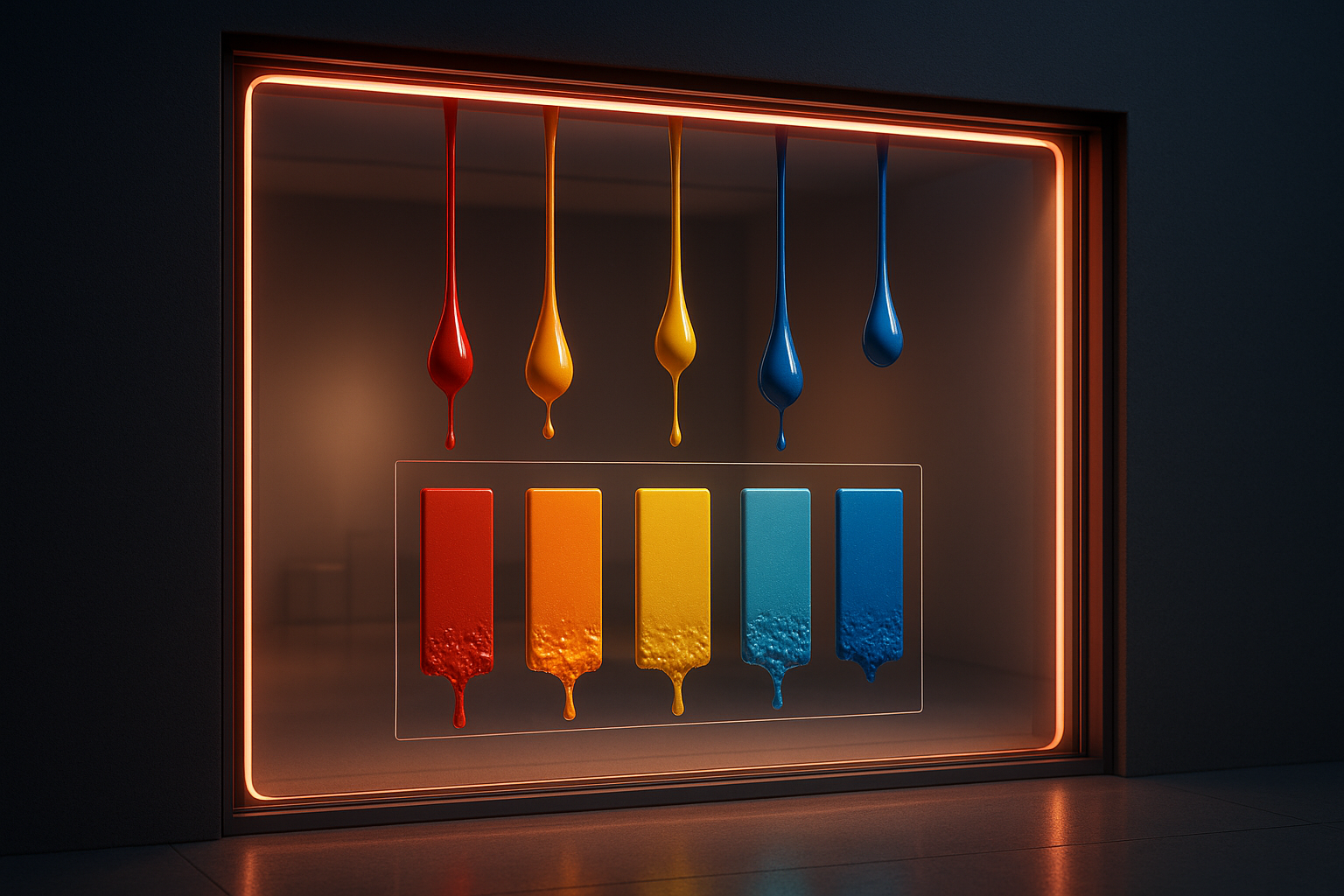
A visual metaphor to inspire your design
Why choose Supra Swatch Colors over other options?
Many swatch plugins require code edits, don’t support collection pages, or miss crucial customizations. Supra Swatch Colors is different:
- No code required; works with all themes and multilingual stores
- Product + collection page swatches built-in
- 20+ styles, instant loading, rich labels/tooltips, and robust product grouping
- Scales to thousands of products without slowing your store
Ready to level up your product pages? Install it here: Supra Swatch Colors on the Shopify App Store. You can also visit the official site for documentation and demos.
Quick checklist
Install Supra Swatch Colors
Choose variant or linked-product swatches
Auto-detect colors or upload image swatches
Customize style (size, shape, labels, tooltips)
Enable on product and collection pages
Localize for multilingual customers
Test on desktop and mobile
Elevate your shopping experience, reduce friction, and showcase every style the moment shoppers land. Start now: Add color swatches to your Shopify product pages.