
How To Add Color Swatches To Shopify Collection Pages Fast
If shoppers can’t see every color at a glance, they bounce. That’s why adding color swatches directly to your collection pages is one of the quickest wins for conversion and UX. In this guide, you’ll learn the fastest, no-code way to add beautiful, blazing-fast color and image swatches to your collection grids—so customers find what they want in fewer clicks.
The short version: use the highly customizable, collection-ready app Supra Swatch Colors. It supports both variant-based swatches and linked-product swatches, loads instantly, and works on any theme with multilingual support.
- Install now: https://apps.shopify.com/swatch-colors-ultimator
- Learn more: https://supra-swatch-colors.sktch.io/
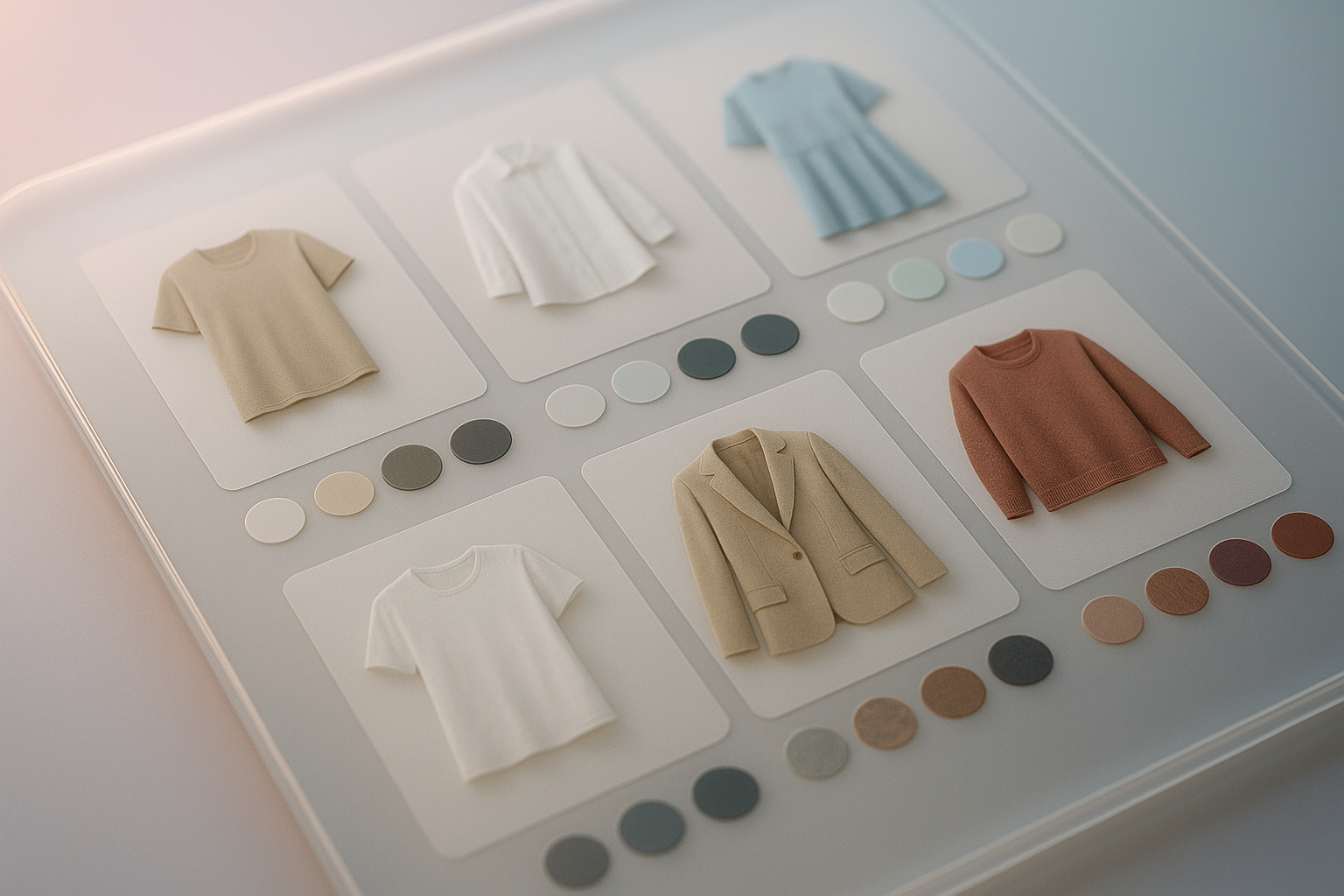
Why put color swatches on collection pages?
- Reduce clicks: Shoppers preview all available colors without opening each product page.
- Boost engagement: Frictionless browsing translates to higher click-through and add-to-cart rates.
- Improve findability: Showcasing options upfront cuts pogo-sticking and keeps customers exploring.
- Modern UX: On-brand, polished swatches communicate care and credibility.
The fastest no-code path: Supra Swatch Colors
Supra Swatch Colors is built for speed, flexibility, and scale:
- Works on all themes, with product and collection page integration—no coding required.
- Supports both color and image swatches (great for patterns, textures, and prints).
- Lets you choose between variant-based swatches or linking separate products into one unified swatch group.
- 20+ customizable styles (size, shape, border, tooltip, label fonts) to match your brand.
- Auto-detects colors in your store or uses product images for ultra-fast setup.
- Fully multilingual with instant-loading swatches for a seamless experience.
Ready to go live in minutes? Install here: https://apps.shopify.com/swatch-colors-ultimator
Step-by-step: Add color swatches to collection pages in under 10 minutes
- Install the app
- Go to https://apps.shopify.com/swatch-colors-ultimator and click Add app.
- Approve permissions and open the app in your admin.
- Choose your swatch source (variants or linked products)
- Variant-based swatches: If your products use a Color option, convert it to swatches in a click.
- Linked-product swatches: If each color is a separate product (e.g., "Tee — Blue" vs "Tee — Red"), group them and show the colors as swatches across product tiles.

- Enable swatches on collection pages
- In the app, toggle on Collection Page Integration.
- Pick where swatches should appear (below title, below image, etc.) to fit your theme’s layout.
- Style your swatches to match your brand
- Choose from 20+ styles: circle or square, size, border, hover states, and selection highlights.
- Configure tooltips and labels, including font sizing and color.
- Use image swatches for patterns/prints to better set expectations.

- Auto-detect or map colors fast
- Use Auto-detect to quickly populate colors from existing product data.
- Prefer pixel-perfect control? Map swatches from product images or upload custom color codes.
- Group separate products (optional but powerful)
- Use Product Grouping to connect separate product pages into a single color family.
- Great for merchants who prefer one-page-per-color but want a unified browsing experience.
- Go multilingual and accessible
- Translate labels and tooltips for multilingual stores.
- Add concise, descriptive alt text for image swatches to support accessibility.
- Save, preview, and publish
- Open a collection page and verify the placement, size, and hover behavior.
- Test on mobile—ensure tap targets are comfortable and labels are readable.
- Done: swatches now load instantly on collection pages.
Prefer a quick walkthrough? Watch: How to add Swatches on the Collection pages of your Shopify Store — https://www.youtube.com/watch?v=FKZQpBrAJQQ
Pro tips for higher conversions
- Use image swatches for complex finishes: leather grain, heather knit, florals, or multi-color prints.
- Prioritize best-sellers: Configure default color order so the most popular option shows first.
- Keep labels short: Use concise color names and let tooltips carry extra detail.
- Maintain consistency: Standardize color naming (e.g., "Navy" vs "Dark Blue") to avoid duplication.
- Track impact: Compare click-through and add-to-cart before/after enabling swatches to validate ROI.
What sets this approach apart
- No theme edits needed: Avoid breaking templates or maintaining custom code.
- Works on any theme and loads instantly: Keep your Core Web Vitals healthy.
- Deep customization: Control size, shape, border, hover, tooltip, and fonts to fit your brand precisely.
- Scales to thousands of products: Manage large catalogs without performance trade-offs.
- Multilingual by design: Localize quickly for global shoppers.
Common questions (quick answers)
- Do I need to edit code? No. It’s fully no-code.
- Will it work with my theme? Yes—works with all Shopify themes on product and collection pages.
- Can I show both color and image swatches? Yes. Use either solid colors or image thumbnails.
- My colors are separate products. Can I still show swatches? Yes—use Product Grouping to link them.
- Is it fast? Yes—swatches are built to load instantly for a seamless experience.
- Does it support multilingual stores? Yes, full multilingual support is included.
Get started now (it takes minutes)
- Install Supra Swatch Colors: https://apps.shopify.com/swatch-colors-ultimator
- Official site and docs: https://supra-swatch-colors.sktch.io/
- More helpful videos:
Turn your collection pages into conversion powerhouses: make colors obvious, browsing delightful, and decisions effortless. Add swatches today.