
Beginner's Guide To Background Removal And Lifestyle Mockups For Ecommerce
If your product photos look “fine” but don’t convert, you’re leaving revenue on the table. Background removal and lifestyle mockups are two of the fastest levers to increase perceived quality, trust, and click-through rate—without hiring a studio crew.
In this beginner-friendly guide, you’ll learn why these visuals matter, the exact steps to do them right, and how to produce studio-grade results in minutes using AI.
Pro tip: Everything below can be done inside Supra AI Photo Studio, a Shopify app built to turn plain shots into high-conversion visuals—no design skills required. Try it free: https://apps.shopify.com/supra-ai-photo-studio and see the live demo: https://supra-ai-photo-studio.sktch.io/
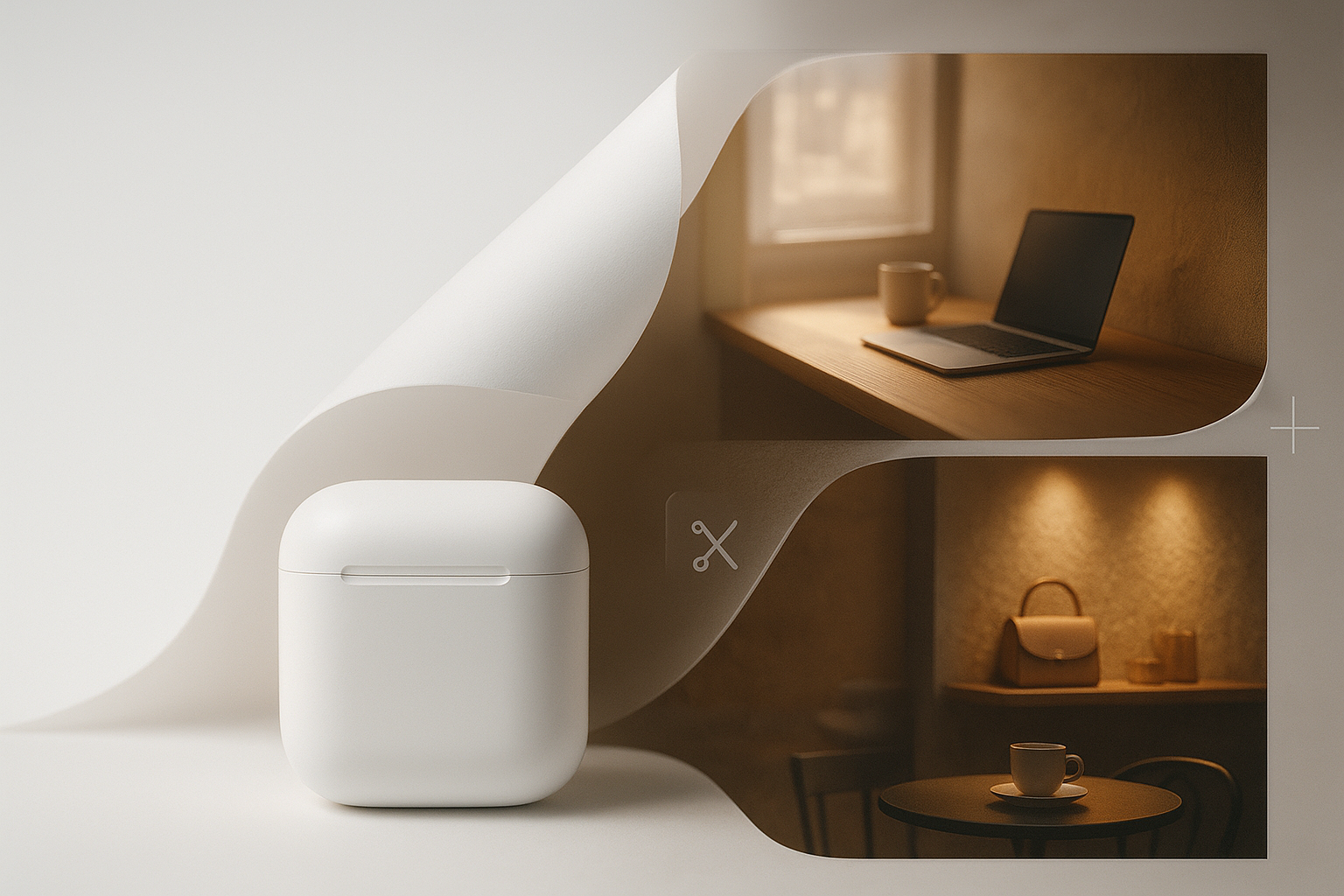
Why background removal matters for ecommerce
- Focus and clarity: Clean backgrounds remove distractions so shoppers lock onto the product’s shape, color, and details.
- Consistency across catalog: Uniform visuals increase trust and make your storefront look premium.
- Faster load times: Simpler images (properly compressed) reduce page weight and improve SEO.
- Multi-channel ready: Marketplaces often require white-background images; you’ll be compliant and consistent.
Lifestyle mockups: the conversion engine
- Context sells: A mug on a real table with steam rising, or sneakers by a doorway, helps shoppers imagine ownership.
- Emotional cues: Lighting, surfaces, and props create mood and perceived value.
- A/B test friendly: Quickly generate multiple scenes to see which backdrop, angle, or color palette lifts CTR and add-to-cart.
The fastest path to pro results: Supra AI Photo Studio
Supra AI Photo Studio helps Shopify merchants create clean product shots and realistic lifestyle scenes in minutes—right inside your admin. Key tools include background remover, object placement, upscaling, auto-enhance, AI try-on for fashion, and UGC/B‑roll video generation. Install it here: https://apps.shopify.com/supra-ai-photo-studio
Step-by-step: remove backgrounds like a pro
- Install and open your product
- Add the app to your store: https://apps.shopify.com/supra-ai-photo-studio
- Open your Shopify admin > Apps > Supra AI Photo Studio, then select a product or upload an image.
- Isolate the product
- Use the Isolate Product (background removal) tool to cut cleanly around edges, hair, or fine textures.
- Tip: Begin with the highest-resolution source image you have; sharp edges = better masks.
- Refine edges and shadows
- Feather or smooth edges if needed. Keep a subtle ground shadow so the product doesn’t look like it’s “floating.”
- If the original shadow is messy, generate a soft, realistic shadow with a directional light.
- Auto-enhance and upscale
- Run Auto Enhance to correct lighting, contrast, and color. Use Upscaling to recover detail for crisp PDP zoom.
- Export in the right format
- For product detail pages: WebP or high-quality JPEG, sRGB color profile.
- Name files descriptively (e.g., "wool-throw-blanket-grey-50x60.jpg") and add alt text for SEO and accessibility.
Here’s a look at the editor layout so you know where everything lives:
https://supra-ai-photo-studio.sktch.io/images/help/editor-overview.webp
Lifestyle mockups 101: composition that converts
Use the Object Placement tool in Supra AI Photo Studio to “drop” your product into any environment—kitchen, office, boutique, or outdoors—then fine-tune angles, materials, and lighting.
- Choose an environment that matches your buyer’s daily life.
- Align perspective: keep horizon lines consistent with the camera angle.
- Watch scale: the product should look true-to-life in size versus the surface/props.
- Light direction matters: ensure the key light direction matches your product’s highlights and shadow falloff.
- Color harmony: keep scene colors complementary to your brand palette; avoid clashing props.
- Leave breathing room: negative space helps the product pop and leaves room for overlays in ads.
Step-by-step: create your first lifestyle mockup
- Start with a clean cutout
- Isolate the product first to remove distracting backgrounds.
- Pick a scene
- In Object Placement, choose the environment: studio, boutique, kitchen, outdoor patio, etc.
- Select surface type (marble, wood, matte stone), camera angle (top-down, 45°, eye-level), and lighting style (soft daylight, moody spot, golden hour).
- Match shadows and reflections
- Enable realistic ground shadow with softness matching your light. For glossy surfaces, add a subtle reflection.
- Dial in realism
- Adjust depth-of-field so the background is slightly blurred. Keep product edges tack-sharp.
- Reduce noise and fine-tune color with Auto Enhance if the scene adds a color cast.
- Generate multiple variants
- Export 3–5 variations changing only one element each (surface, angle, or light). A/B test in ads and PDP galleries.
Example of product placement in action:

Bonus for fashion brands: realistic on-model try-ons
AI try-on lets you place apparel or accessories on realistic models, with control over pose, skin tone, and body type while preserving product accuracy. It’s a fast way to showcase fit and style without a full photo shoot.

Image SEO and CRO checklist
- File types: Prefer WebP for web; fall back to JPEG/PNG if needed.
- Dimensions: Serve images at least 1.25x the display size for crisp retina rendering (e.g., 1600–2048 px on the long edge for hero/PDP zoom).
- Compression: Target 70–85% JPEG quality or lossless WebP with smart compression.
- Descriptive filenames: include product, color, size (e.g., "linen-apron-oatmeal-adjustable-strap.jpg").
- Alt text: front-load the product name and key attributes (e.g., “Women’s linen apron in oatmeal on marble countertop”).
- Consistency: keep horizon lines, color temperature, and shadow softness consistent across the catalog.
- Page speed: Fewer, lighter images improve LCP/CLS and rankings—use the smallest file that still looks sharp.
Common mistakes (and how to fix them)
- Floating products: Always add a subtle grounded shadow or reflection.
- Mismatched lighting: Align the highlight direction and color temperature with the scene.
- Wrong scale: Compare with known objects (e.g., coffee mug height) and adjust.
- Over-saturated colors: Use Auto Enhance sparingly; product color must stay accurate.
- Busy backgrounds: If props distract from the hero product, simplify the scene.
Beyond photos: quick wins with video
Short-form video boosts engagement. Use the UGC Video Generator to turn a product image into influencer-style clips for TikTok/Reels, or generate cinematic B‑roll with dust/liquid/smoke effects that preserve product detail. Both can be created inside Supra AI Photo Studio.
See a quick trailer here: https://www.youtube.com/watch?v=M2ISy20la78
Putting it all together in minutes
- Remove background with Isolate Product.
- Auto Enhance + Upscale for crisp detail.
- Create lifestyle mockups via Object Placement; export multiple variants.
- If applicable, generate on‑model visuals using AI Try‑On.
- Add alt text, compress, and publish to your Shopify product gallery.
Why merchants choose this workflow
- Studio quality, no studio: Save thousands on photo shoots while keeping visual consistency.
- Speed to market: Launch new collections faster with on-brand imagery.
- Higher conversions: Clear, context-rich visuals lift CTR and add-to-cart.
Get started today
Ready to turn plain images into high-converting assets? Install Supra AI Photo Studio on Shopify: https://apps.shopify.com/supra-ai-photo-studio
Prefer a visual walkthrough first? Explore the live demo and feature tour: https://supra-ai-photo-studio.sktch.io/
Once you’re in, open any product, remove the background, and generate a lifestyle mockup. You’ll have publish-ready assets in minutes.
Optional: choose from a wide range of model looks for try-on scenarios:

Your images are yours to use across your store and marketing, and there’s a free plan to try it out. Build a clean, consistent product gallery, then layer in lifestyle and UGC content to tell a cohesive brand story—and watch your conversion rate climb.