
Beginner Friendly Guide To Background Removal For Ecommerce Product Images
Why background removal matters for ecommerce
Clean, consistent product images are one of the fastest ways to improve conversion rate, trust, and SEO. Background removal helps you:
- Create consistent white or transparent backgrounds across your catalog
- Avoid distractions so shoppers focus on the product
- Meet marketplace and ad standards that prefer white or light backgrounds
- Speed up page loads with lean, well-optimized files
If your Shopify store still has noisy, mismatched backdrops, this guide will show you how to remove backgrounds the beginner friendly way, plus how to replace them with polished studio or lifestyle scenes that convert.
The quick solution: AI background removal on Shopify
Manual cutouts in traditional editors can be tedious. Instead, use an AI-powered workflow that takes minutes, not hours. Supra AI Photo Studio plugs right into your Shopify admin and lets you remove backgrounds, enhance images, and even place products in realistic environments. No design skills needed.
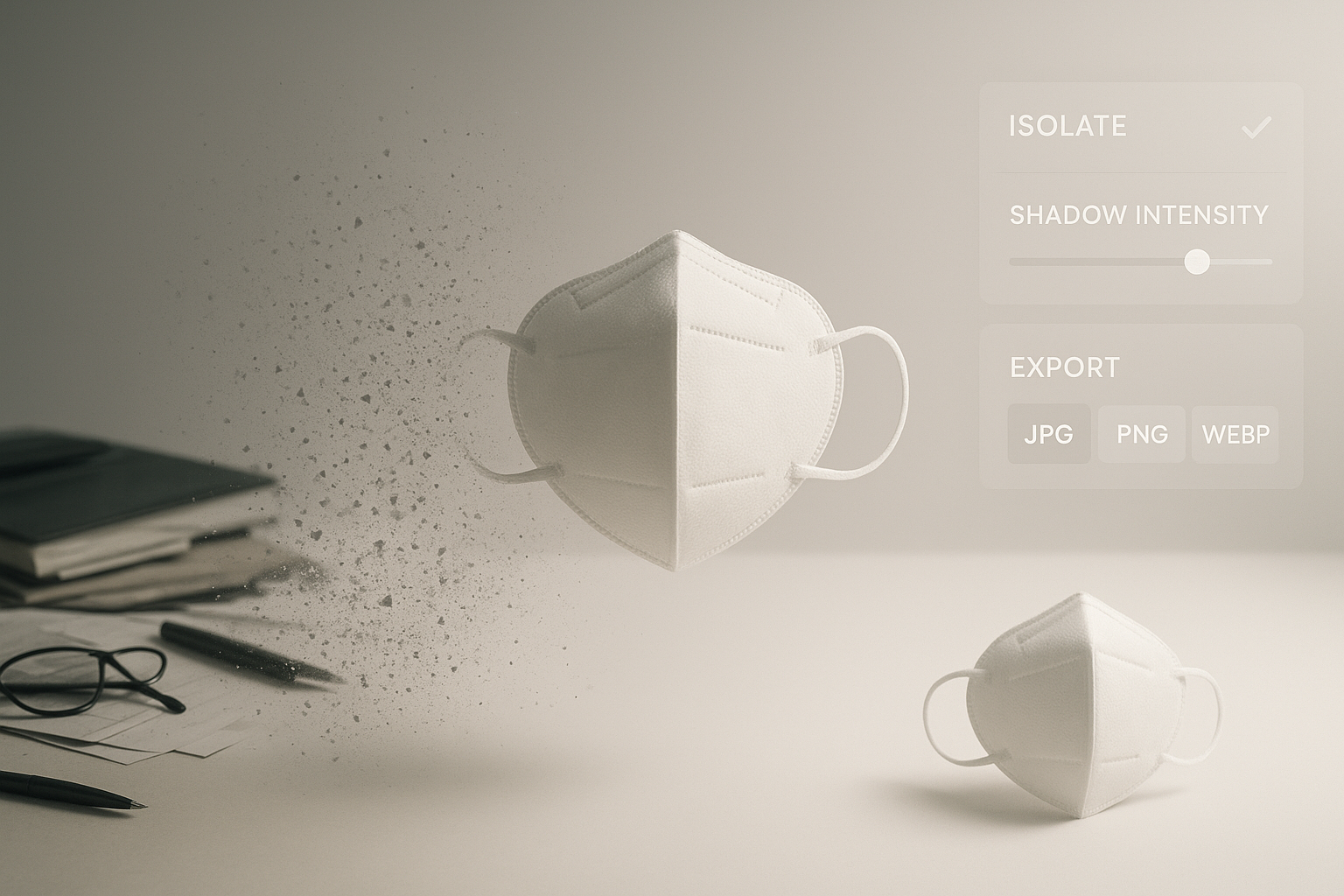
- One-click isolate product tool for instant background removal
- Smart edge handling for hair, fabric, and complex shapes
- Replace the background with white, transparent, or on-brand lifestyle scenes
- Auto enhance, denoise, deblur, color and lighting correction, upscaling
- Export consistent, web-optimized images to your product pages
Explore the full feature set here: Supra AI Photo Studio landing page
Step by step: remove and replace a background
Follow this beginner friendly workflow in Supra AI Photo Studio:
- Install and open the app
- Install from the Shopify App Store: Supra AI Photo Studio
- Open the app from your Shopify admin and select a product image.
- Isolate the product
- Use the Isolate Product tool to remove the background in one click.
- Check edges around hair, straps, or fine details. If needed, run auto enhance to refine contrast and sharpness.
- Choose your new background
- White background (JPG): ideal for product hero images and Google-friendly listing consistency.
- Transparent background (PNG): perfect for layering onto colored sections or marketing graphics.
- Lifestyle scene (Object Placement): place your product on a surface and into environments such as kitchens, studios, boutiques, or outdoor scenes with realistic lighting and shadows.
https://supra-ai-photo-studio.sktch.io/images/help/editor-overview.webp
- Enhance for a studio look
- Use auto lighting correction to balance exposure and remove color casts.
- Apply upscaling for crisp zoom on PDPs; aim for at least 2000 px on the longest side.
- Keep a natural soft shadow to ground the product so it does not look like a sticker.
- Export and publish
- Formats: JPG for white backgrounds, PNG for transparent, WebP for performance where supported.
- Compression: target 150 to 300 KB for PDP thumbnails and 300 to 800 KB for hero images depending on detail.
- Publish directly back to the Shopify product from the top bar.
Tip: Batch your images. Consistency across angles, shadows, and margins can boost conversion and make your brand look premium.
When to use white, transparent, or lifestyle backgrounds
- White background: best for hero images, comparison grids, and marketplace feeds; high clarity and compliance.
- Transparent background: flexible for banners and design overlays; great for seasonal campaigns.
- Lifestyle background: ideal for secondary images and ads; adds context, scale, and emotion.

Pro tips for tricky products
- Glossy objects (jewelry, electronics): keep reflections intact; avoid over-smoothing edges. Slight soft shadow helps realism.
- Transparent items (glass, skincare bottles): remove background but preserve inner transparency; use a subtle gray or off-white for clarity.
- Apparel and textiles: ensure clean edges on lace and hair. Use AI Try-On for on-model shots that match your brand.
- Dark products on white: add gentle rim light via auto enhance to avoid blending into the background.
Avoid these common background removal mistakes
- Halo or cutout glow: caused by aggressive feathering. Re-run isolate and reduce feathering.
- Floating products: add a soft, realistic shadow; match light direction with the scene.
- Over-compression: watch for JPEG artifacts on textured fabrics and fine patterns.
- Inconsistent margins: keep uniform padding around products for a tidy grid.
Build a fast, repeatable workflow in Shopify
- Standardize image dimensions: aim for 2000 to 3000 px on the longest side for crisp zoom.
- Use consistent file naming and alt text: include product name, color, and key attribute for SEO.
- Keep a style guide: angle, crop, margins, shadow intensity, background color.
- Batch process with Supra AI Photo Studio across your catalog to keep everything aligned.
For a quick look at video capabilities for ads and product drops, see the demo: Supra AI Photo Studio demo trailer
Turn plain cutouts into high-conversion visuals
Once your backgrounds are clean, take them further:
- Object Placement: instantly generate lifestyle scenes that match your brand palette.
- AI Try-On: put apparel onto realistic models with accurate fabric fit and color.
- UGC videos and b-roll: transform a single product image into short, scroll-stopping videos for ads.
All features are available directly inside your Shopify admin: Install Supra AI Photo Studio
Quick FAQ
- Do I need design skills? No. Supra AI Photo Studio is built for beginners with one-click tools.
- Which file format should I use? JPG for white backgrounds, PNG for transparency, WebP for performance where supported.
- What image size is best for Shopify? At least 2000 px on the longest side for zoom and future-proofing.
- Can I try it free? Yes. Start on the free plan and upgrade as you need more generations.
Final thoughts
Background removal is the foundation of conversion-ready product photography. With the right workflow, you can go from cluttered snapshots to studio-grade images in minutes. Install Supra AI Photo Studio to remove and replace backgrounds, enhance clarity, and generate on-brand visuals that lift trust and sales. Explore the full capabilities here: supra-ai-photo-studio.sktch.io